
Analyze EYRAplex data from flow cytometry with Opal software
Published: April 20, 2026
Updated: August 25, 2026
3 minute read
Authored by: Tyler Sandberg
Analyzing EYRAplex data generated on your flow cytometer is easy with Mabtech Opal software. In this tutorial, we'll go through the entire process of how to properly organize the exported PE MFI values, importing the export file into Opal, and finally generate the standard curves and unknown sample concentrations.
The analysis of the EYRAplex data from your flow cytometer can be broken down into 3 simple steps:
- Organize PE MFI values in the export file
- Import and add layout information
- Generate standard curves & concentrations
1. Organize PE MFI values in the export file
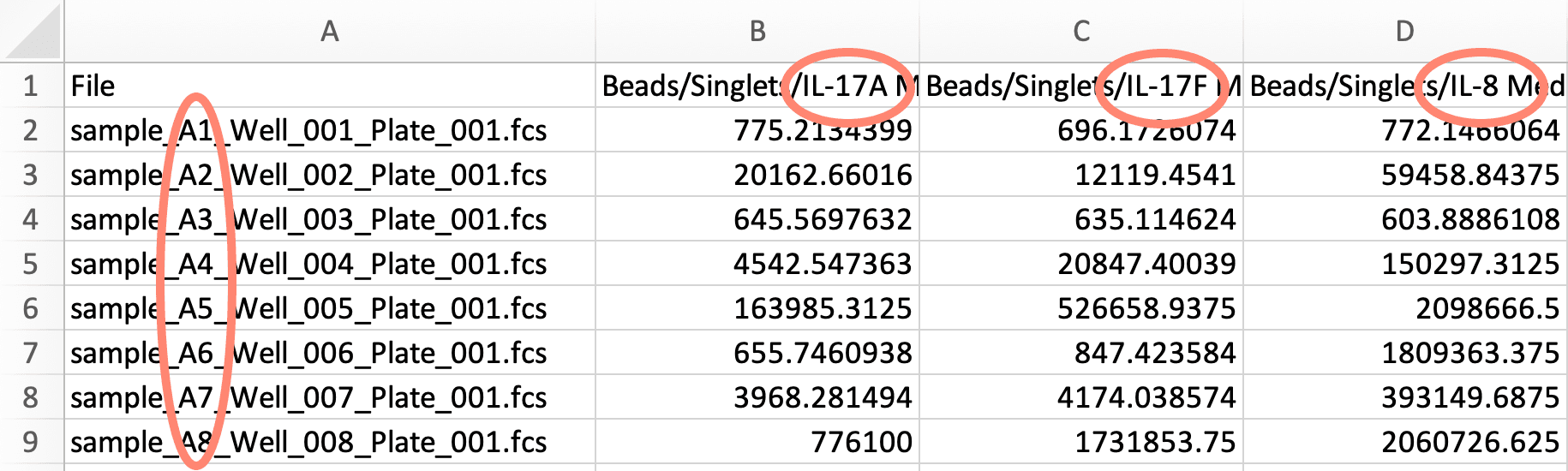
For Opal to correctly read and import the PE MFI values from your experiment, it needs to know where these values belong on a plate layout. This is why it's required to include the well ID in the FCS file name. That way, the exported Excel or CSV file states the well ID in the file name in each row in the first column.
Then each subsequent column should contain each analyte's PE MFI value, one analyte per column. Here, the order doesn't matter, but we suggest making sure the column header includes the analyte name to make it easier to identify in the Opal software.

2. Import and add layout information
Next, you will need to import the organized PE MFI export file into Opal.

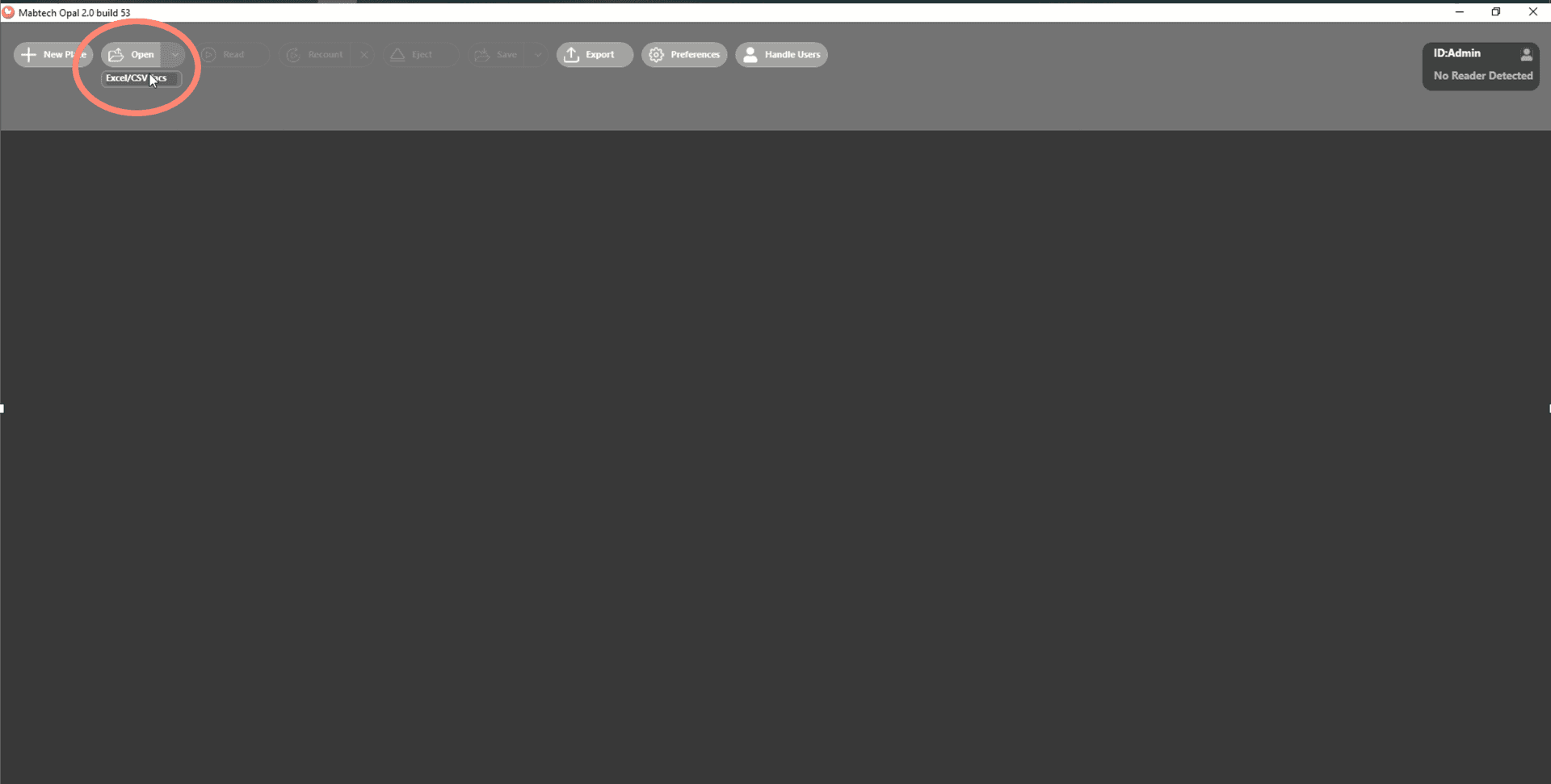
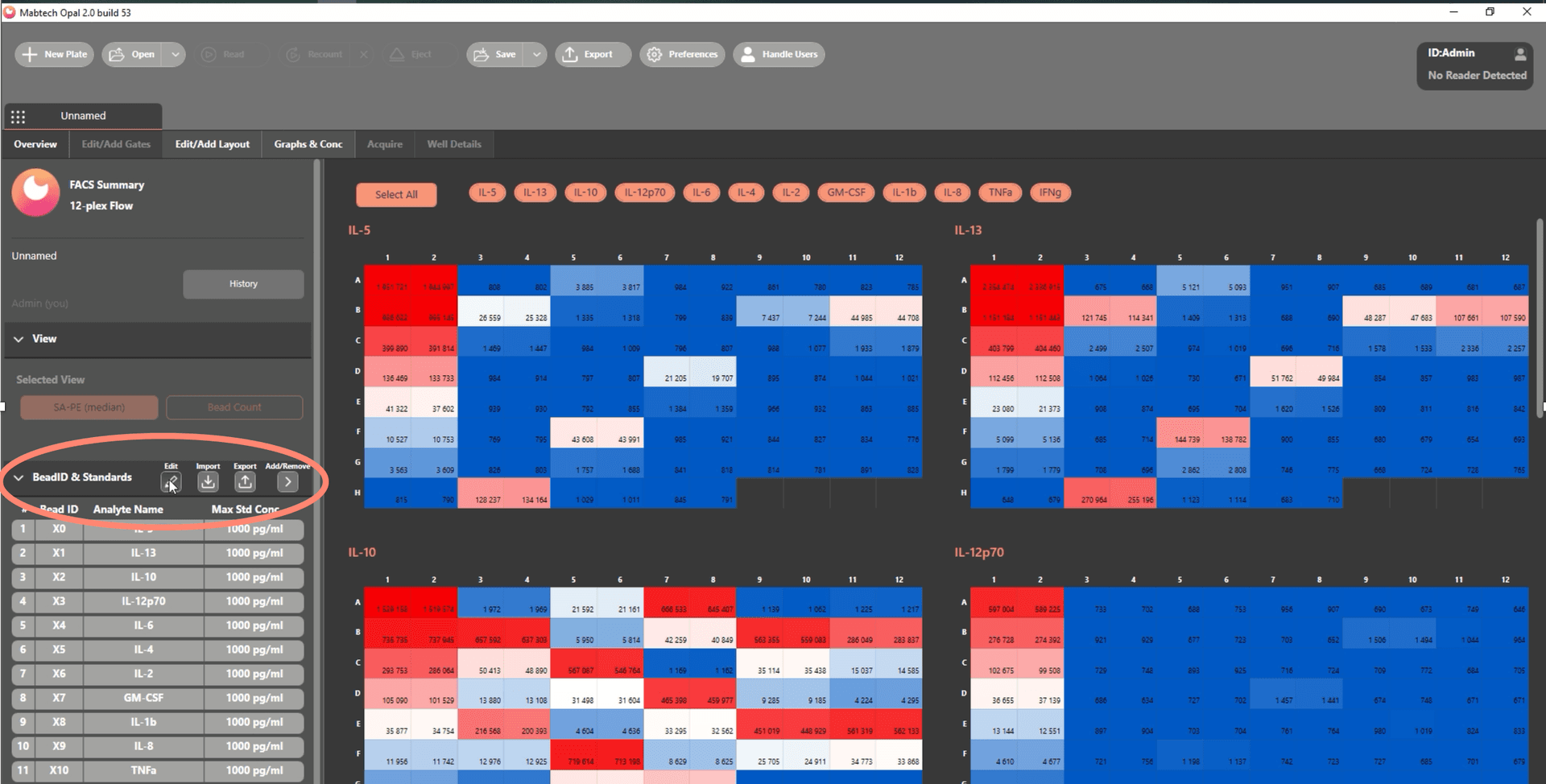
If the data was organized correctly, the MFI heatmaps should populate. Now you can name and add the starting S1 standard concentration designated in your EYRAplex kit's datasheet for each analyte, either in the current view or under the Layout tab.

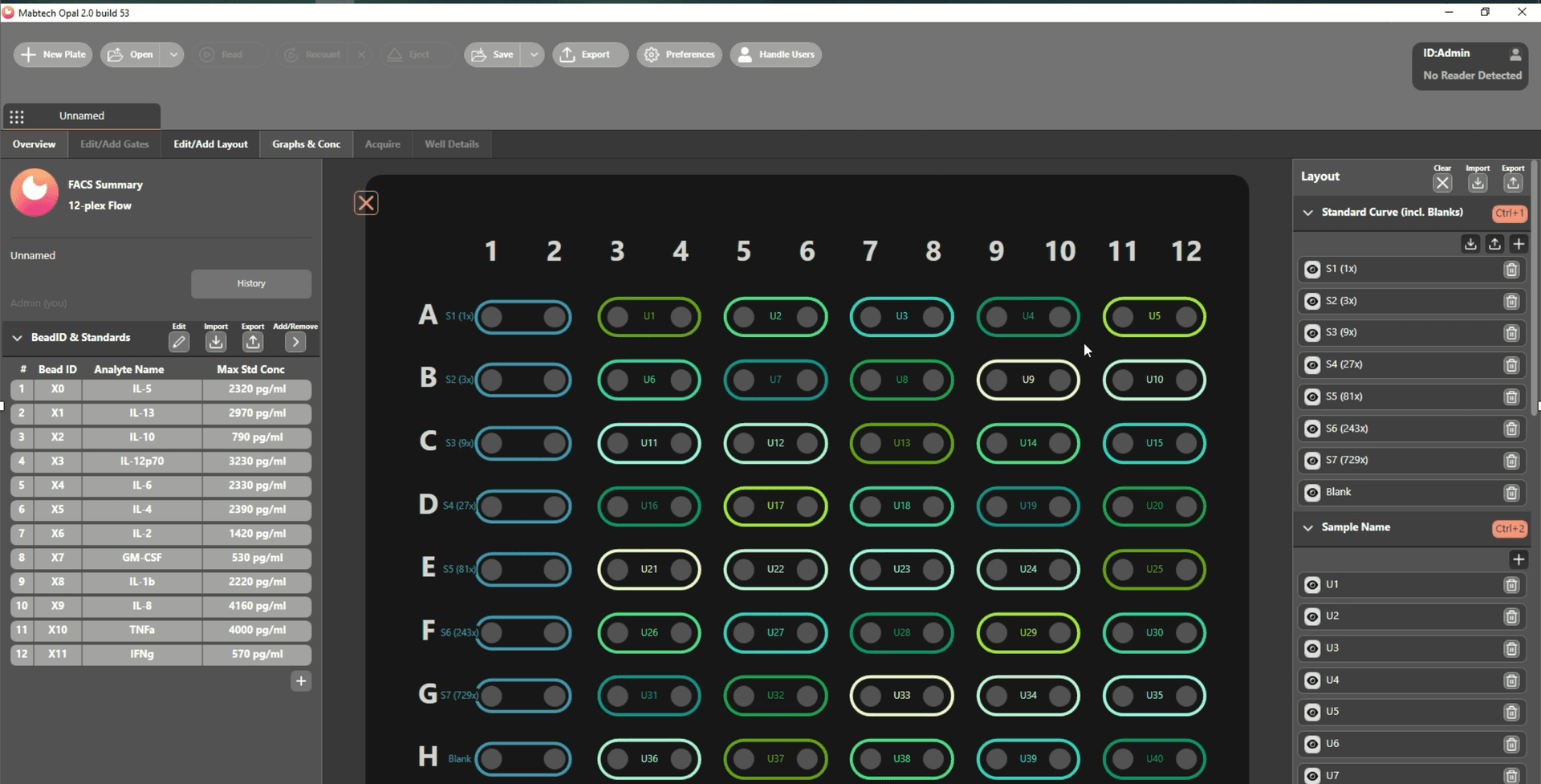
Click on the Edit/Add Layout tab and add the plate layout information from your assay. Designate which wells were the standards, samples, replicates, and dilutions so Opal can automatically generate the standard curve and concentrations in the next step.

3. Generate standard curves & concentrations
The final step (also the easiest step) is to have Opal generate the standard curves and concentrations of the unknown samples based on the imported PE MFI values. Simply click the Graphs & Conc. tab and enjoy your data!

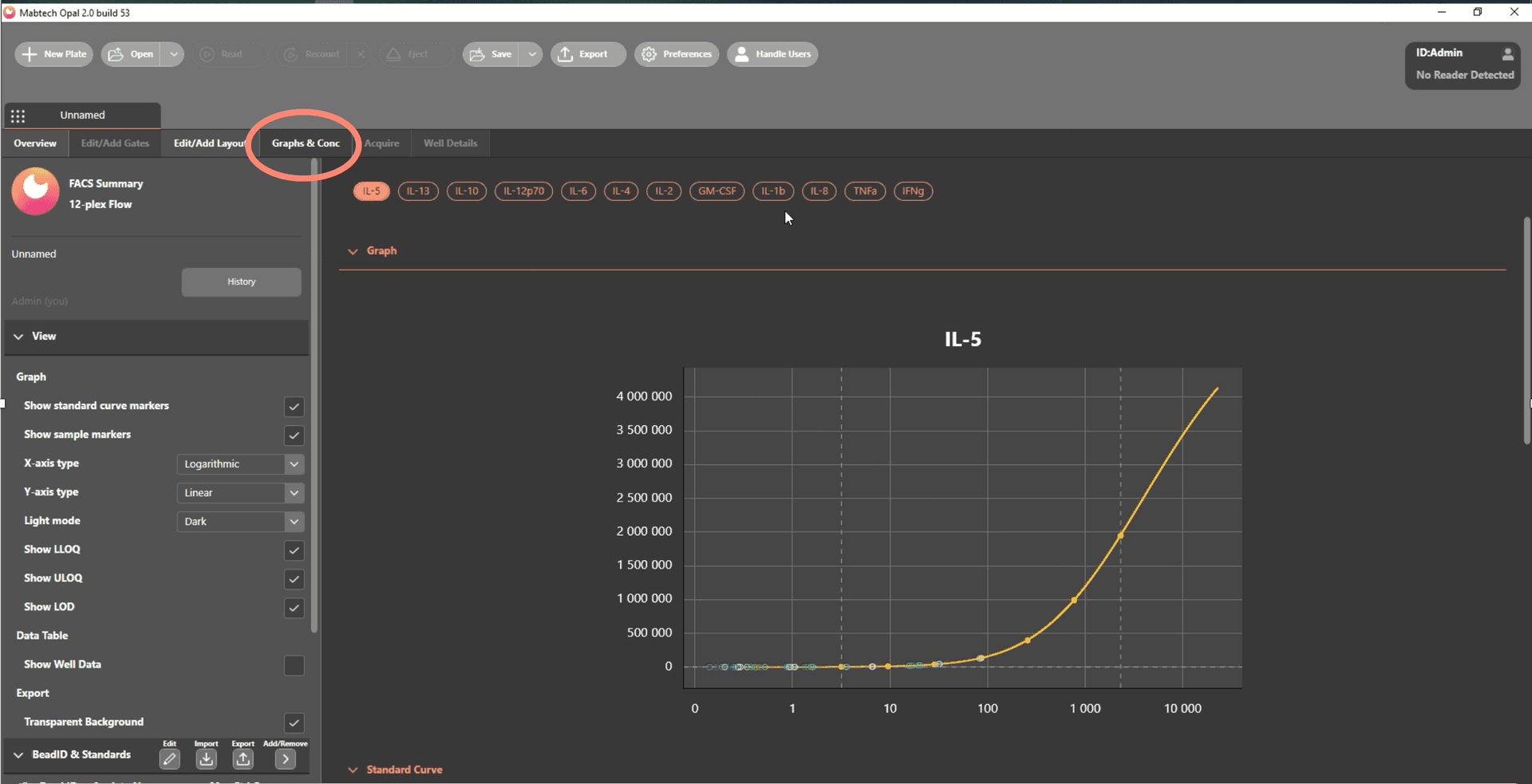
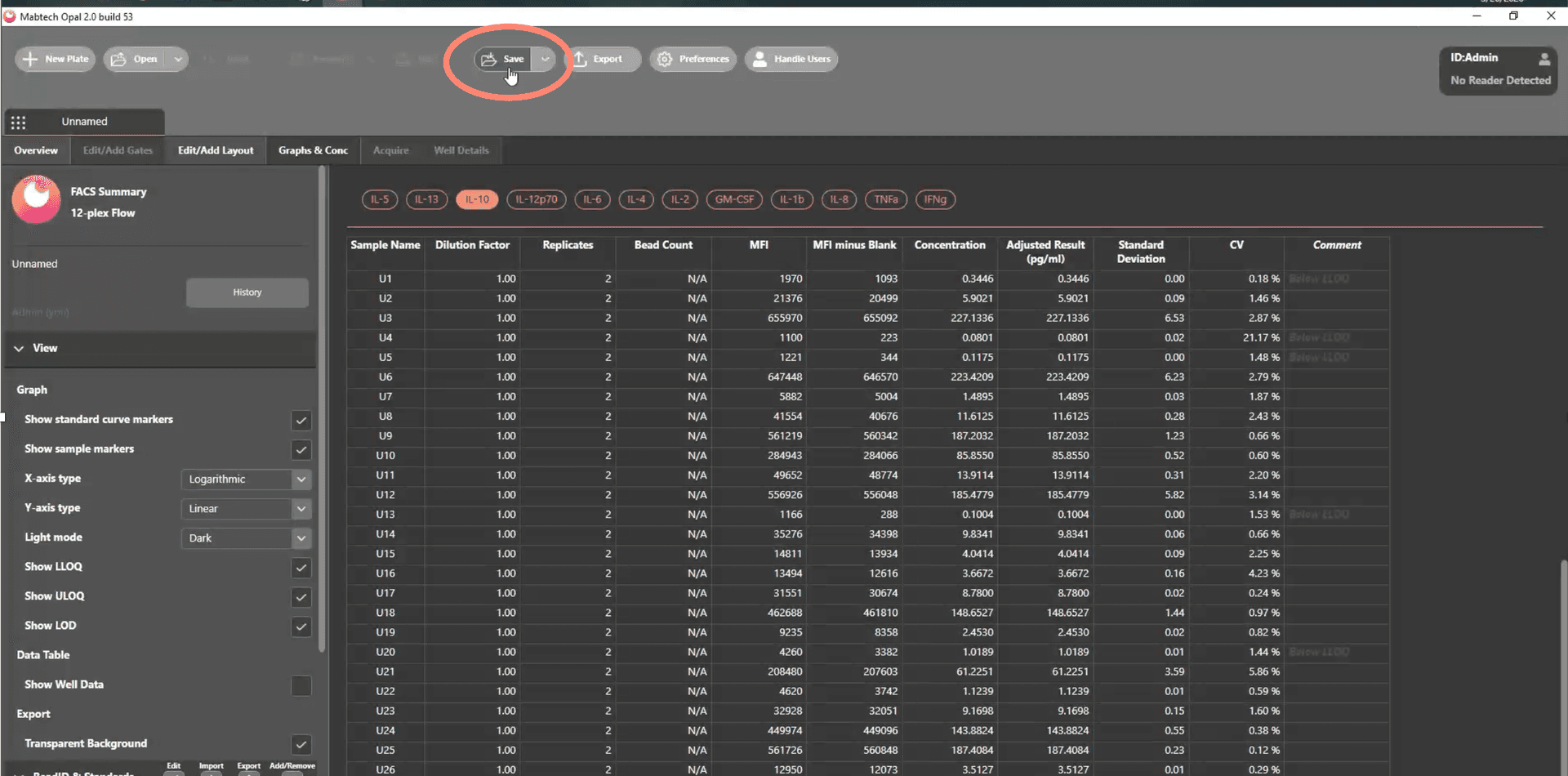
You can have a quick look through all your data here in this view and, when you're ready, click Save to save a new Excel file with the generated data for downstream analysis.

Video tutorial
Want to watch the entire analysis process? Let our Product Manager for Instruments, Berend, take you through each step below.